Own product, in use in a customer's test environment
Schedule Board Manager
A Power Apps Code App for the tabs of the schedule board in Dynamics 365 Field Service and Project Operations. It copies boards together with their configurations, edits every setting in a form instead of in JSON, shows booking tile, resource cell and colors in a live preview, compares boards, transfers settings to several boards and brings a board with all its references into another environment. Every change shows beforehand what will change.
Type
Power Apps Code App, runs in the customer's tenant
Stack
React, TypeScript, Vite, Fluent UI v9
Data
Schedule board settings and their configurations in Dataverse, connector for sharing and metadata
Scope
Copy, edit, appearance, filter layout, sharing, compare, transfer
On this page
What it's for
Every tab that dispatchers see at the top of the schedule board is a record in the Schedule Board Setting table. It holds a few dozen columns, a JSON with time scale, working hours, row heights, schedule types and requirement panels, the saved filter values and three references to configuration records of their own: the filter layout, the resource cell template and the retrieve resources query. Whoever needs a board for a second team has so far created it by hand or edited the JSON in the form. Whoever wants to know why two boards behave differently compares two JSON texts.
Microsoft provides a FastTrack control for this that can read, copy, delete and activate boards, but not edit them. Its copy only takes keys with the msdyn_ prefix and thereby loses the three references to the configurations, and that is exactly where the customer's own filters and queries sit in environments that have grown over time. Schedule Board Manager starts there: copying with all references, editing in a form, appearance with preview, comparing, transferring to several boards and into other environments.
Only configuration data of the schedule board is involved, no bookings and no personal data. The screenshots on this page show the app with its built-in sample data, a fictional dispatch setup with invented names, not customer data.
The app has been running since October 1, 2026 in the test environment of a customer in automation engineering who runs the schedule board through Project Operations. The path to production is next, and the export and import function was built for it.
One board
From the list to the history: everything attached to a single board.
Board list and actions
All boards on the left with position, share type, status and owner, a search by name and owner at the top. The order of the tabs can be changed. Copy asks for name, share type and position and takes the three configuration references along, optionally the record shares as well. A copy is never a system board, “System” becomes “Everyone”. Plus activate, deactivate, delete, export and the jump to the record form.
Copy with all three references
Tab order
Export as a package
Save, conflicts, history
Before writing, a preview shows every changed field, down to the individual values in the JSON, and only the changed columns are written. Before that, the app checks the record's version number, because the schedule board itself writes the settings on every view change. The previous state goes into the history, locally in the browser, the last ten, and can be loaded back as a draft.
Diff down to the JSON value
Conflict check via version number
Ten states in the history
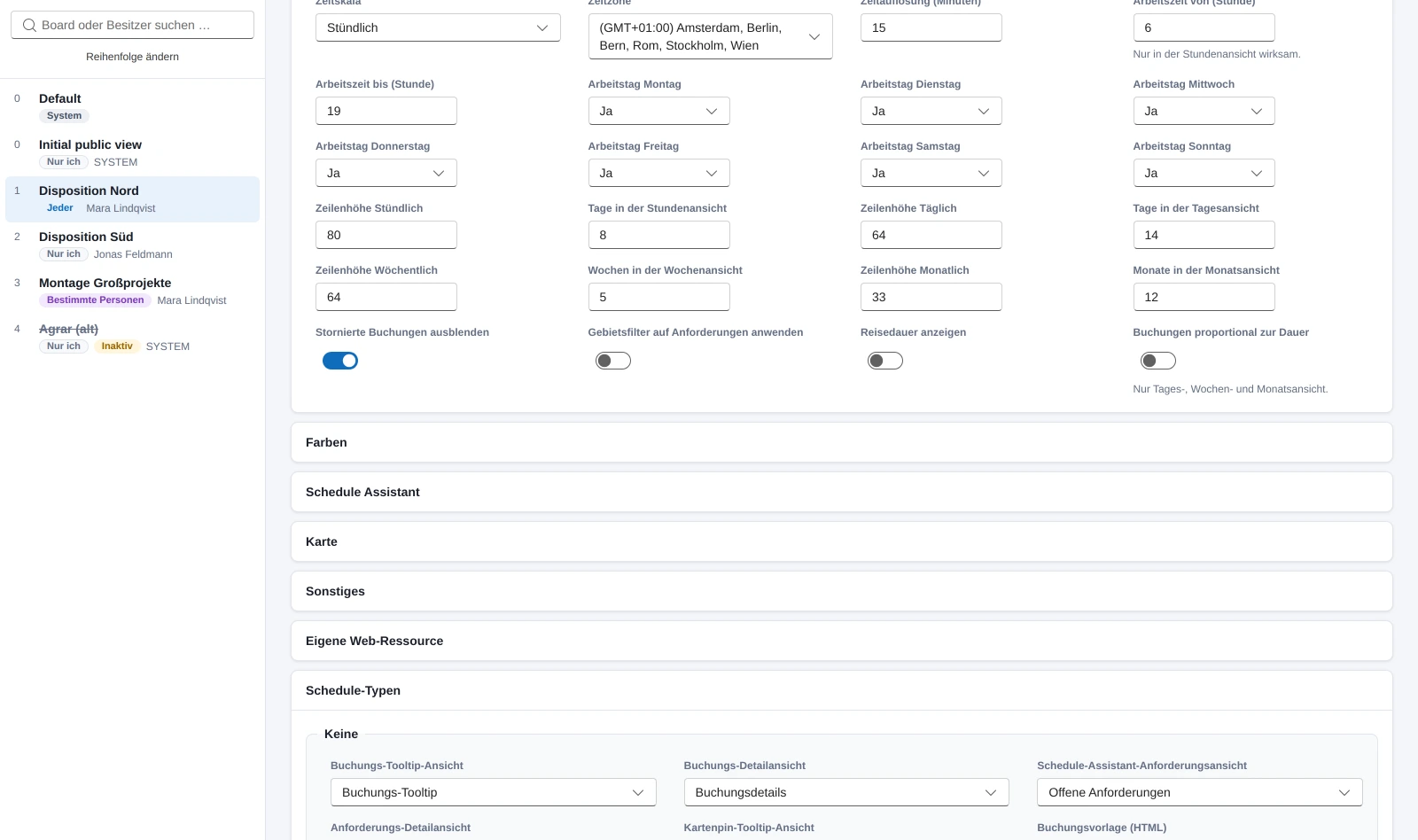
Edit: every setting in a form
The form follows Microsoft's field mapping: board view, colors, schedule assistant, map, other with the three configuration references, custom web resource, the schedule types per booking type and the requirement panels with add, sort and remove. Fields that are not set show the value of the default board they inherit from. For anything the form does not know, there is the JSON tab.
The settings JSON is never rebuilt. The editor changes exactly the path in question, unknown keys stay as they are, and there are plenty of them. Switches the board only knows as a present key are removed when switched off and not set to zero, the way the board itself does it.
Form after the field mapping
Inherited values of the default board visible
Unknown keys are preserved
The board list and the form of a board. Sample data, a fictional dispatch setup, no customer data.
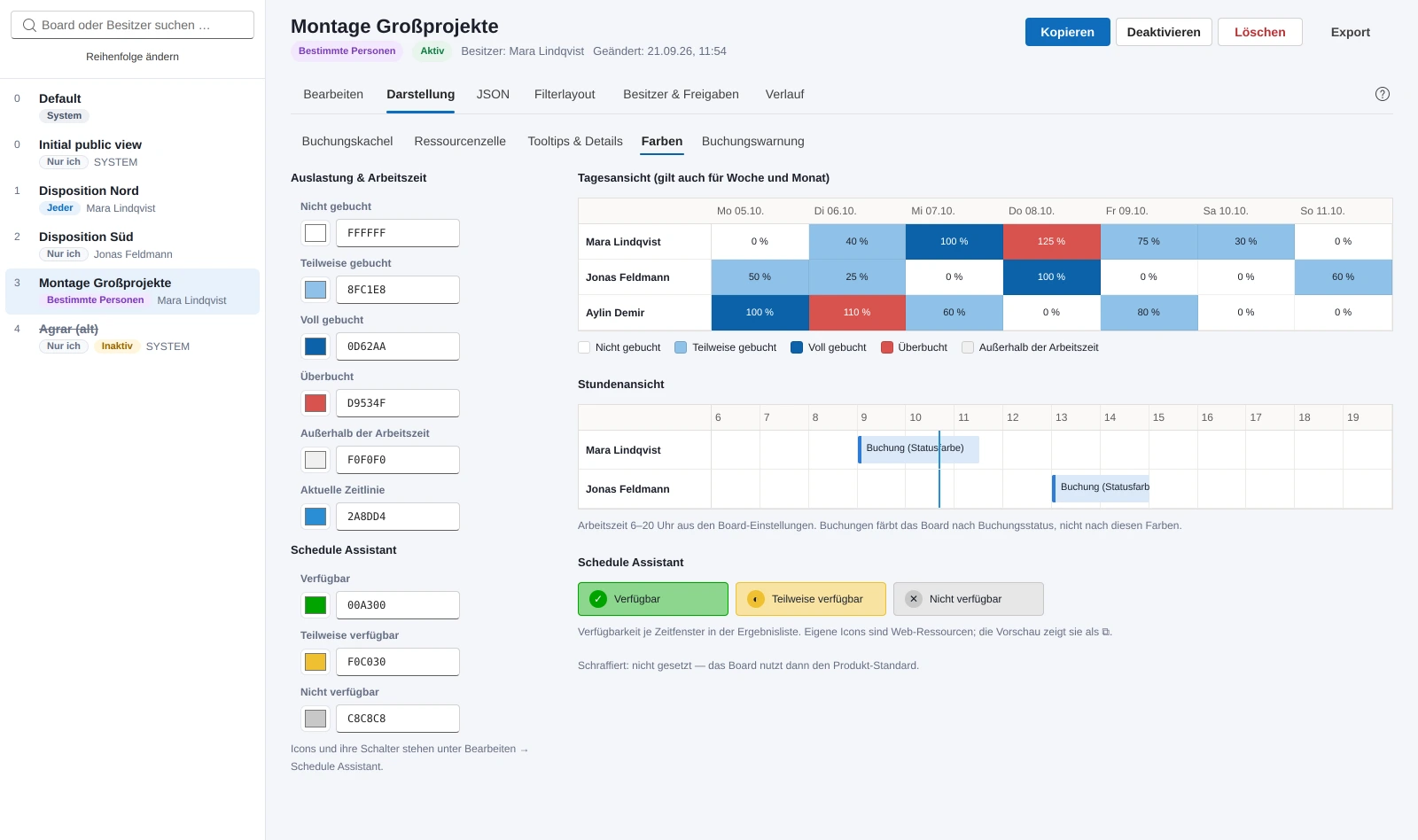
Appearance: see what the dispatcher sees
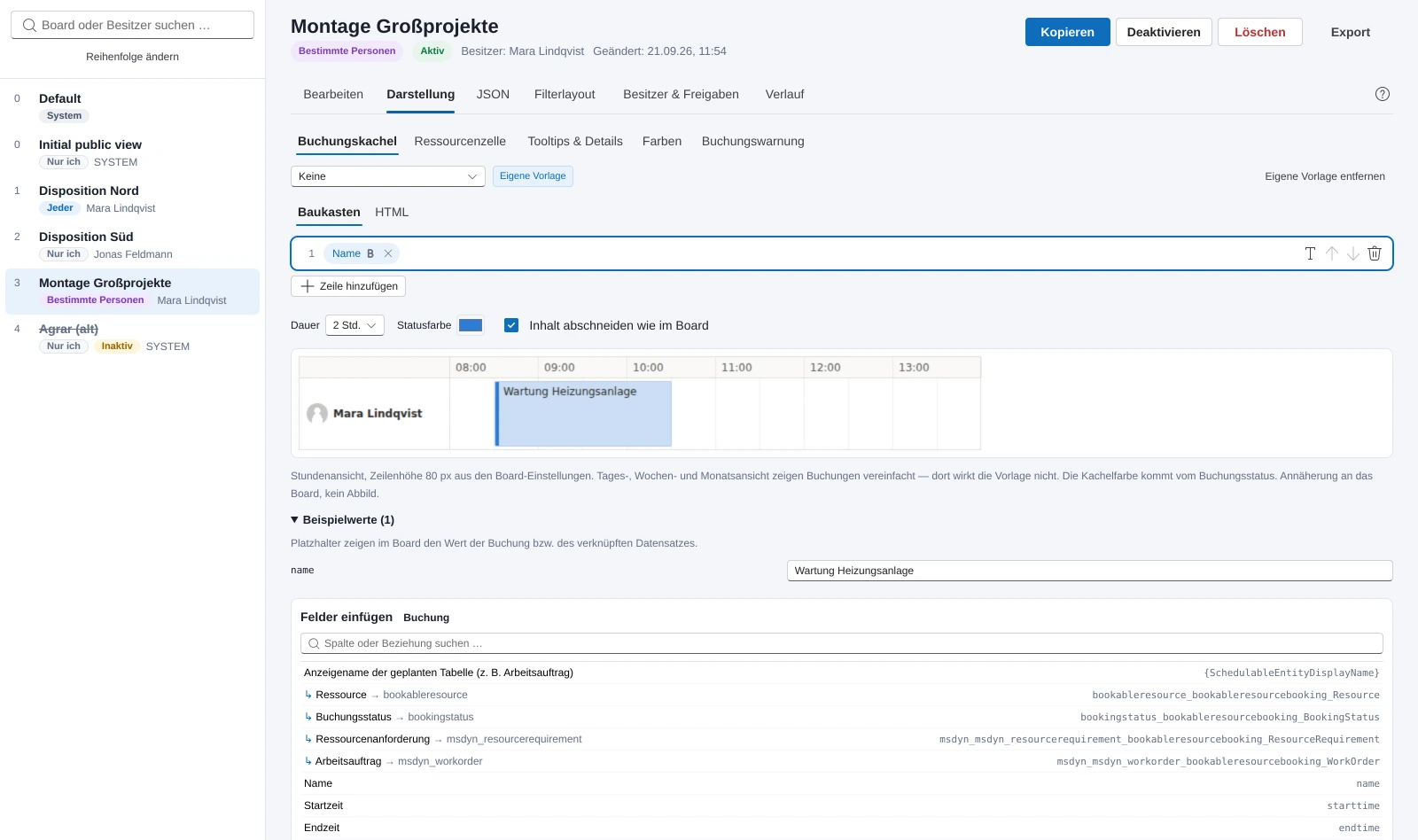
The tab brings together everything visible on a board with a live preview. The booking tile per schedule type as a builder of rows with fields and text, fields across the booking's relationships by click, below it the tile in an hourly view with duration, status color and row height; whoever wants to edits the HTML directly. The resource cell as a Handlebars template with the variables from the retrieve resources query, in four states and in the schedule assistant view, with its own save and line diff. Tooltips and details from the columns of the configured views. Colors for day and hourly view and schedule assistant. The booking alert.
The designer shows whether a template belongs to the board, is inherited from the default board or the product default applies, and checks for JavaScript and wrong placeholders. Template HTML runs in the preview in a sealed frame without scripts. The preview approximates the board, it is not a replica: the board's CSS is not available outside the board.
Builder instead of HTML for the tile
Own Handlebars interpreter for the cell
Inheritance from the default board visible
Colors with preview: day view, hourly view and schedule assistant, colored from the board's values.The booking tile as a builder: rows with fields, the preview in the hourly view and the booking's fields with their relationships.
Filter layout: the fields on the left of the board
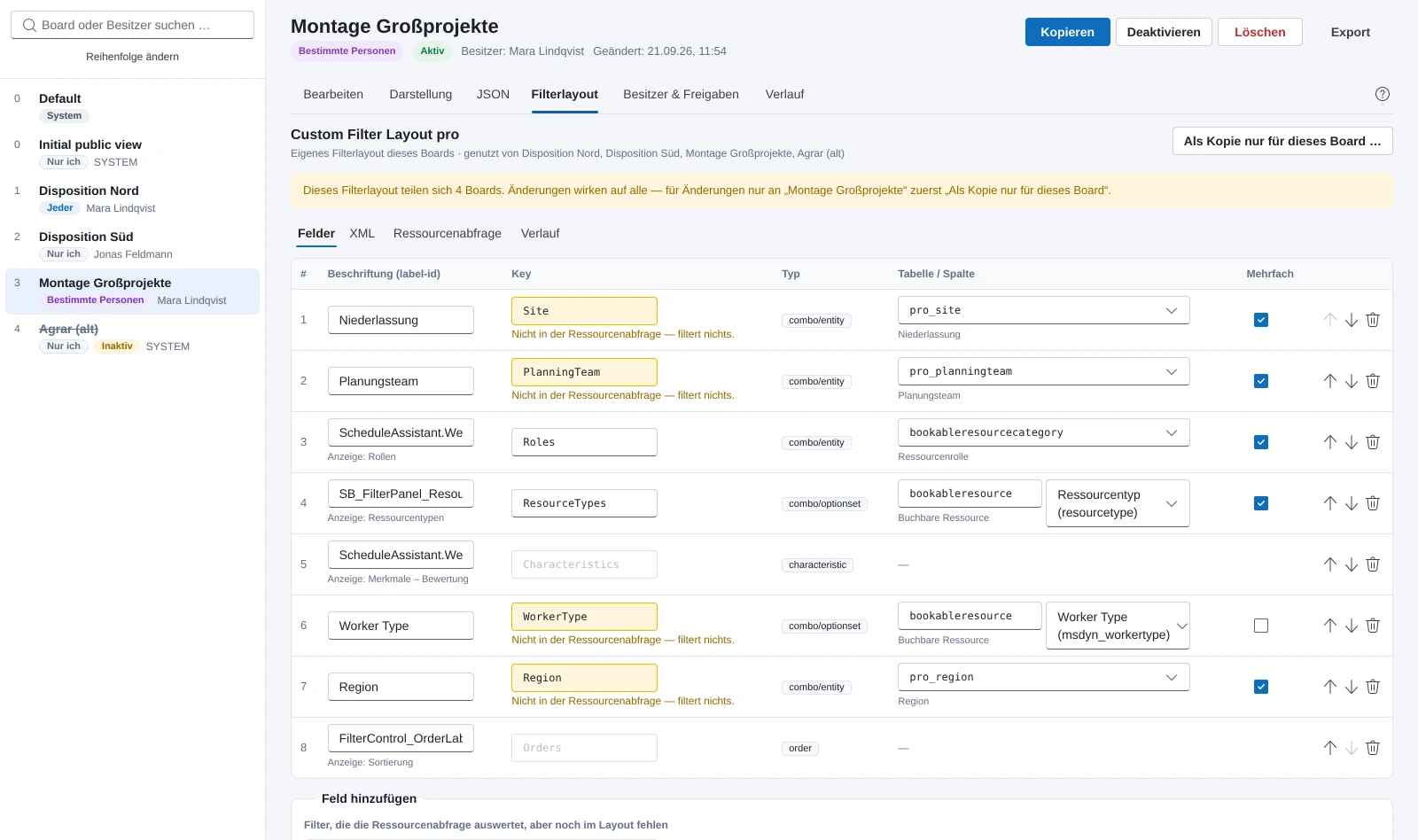
The fields of the resource filter are not in the board but as XML in a configuration record of their own, which several boards can share. The app edits label, key, table and column, multi-select and order, removes fields and creates new ones, with tables and choice columns from the environment's metadata. It shows which boards share the layout and, on request, creates a copy for the current board only.
A field only filters once the retrieve resources query evaluates its key. The app reads the board's query and marks fields without a counterpart as “filters nothing”. The other way round, it suggests every key the query knows but the layout lacks, with its effect in plain words, and prefills kind, table, column and label. Unknown attributes and nested elements in the XML stay unchanged, containers only through the XML tab.
Shared layouts visible, copy per board
Reconciled with the retrieve resources query
Suggestions for missing fields
A layout that four boards share, and fields that filter nothing because the retrieve resources query does not know their key.
Owner and sharing
For boards with “Specific people” the app shows who sees the board, users and teams, changes the level between read and read and write, removes shares and finds new people via live search from two characters; several words narrow it down. The owner can be changed to a user or an owner team, with confirmation and notes; system boards are excluded. With “Just me” this is the way to hand a board over to someone else.
Read, or read and write
Live search across name and email
With the signed-in user's permissions
JSON
Settings and filter values as raw text, for everything the form does not map: the inline copies of the schedule assistant configurations in the schedule types, keys Microsoft does not document, experiments. The diff preview on save applies here too.
Fallback for the undocumented
The same save bar
Several boards, several environments
Compare, transfer to several boards, bring into another environment.
Compare
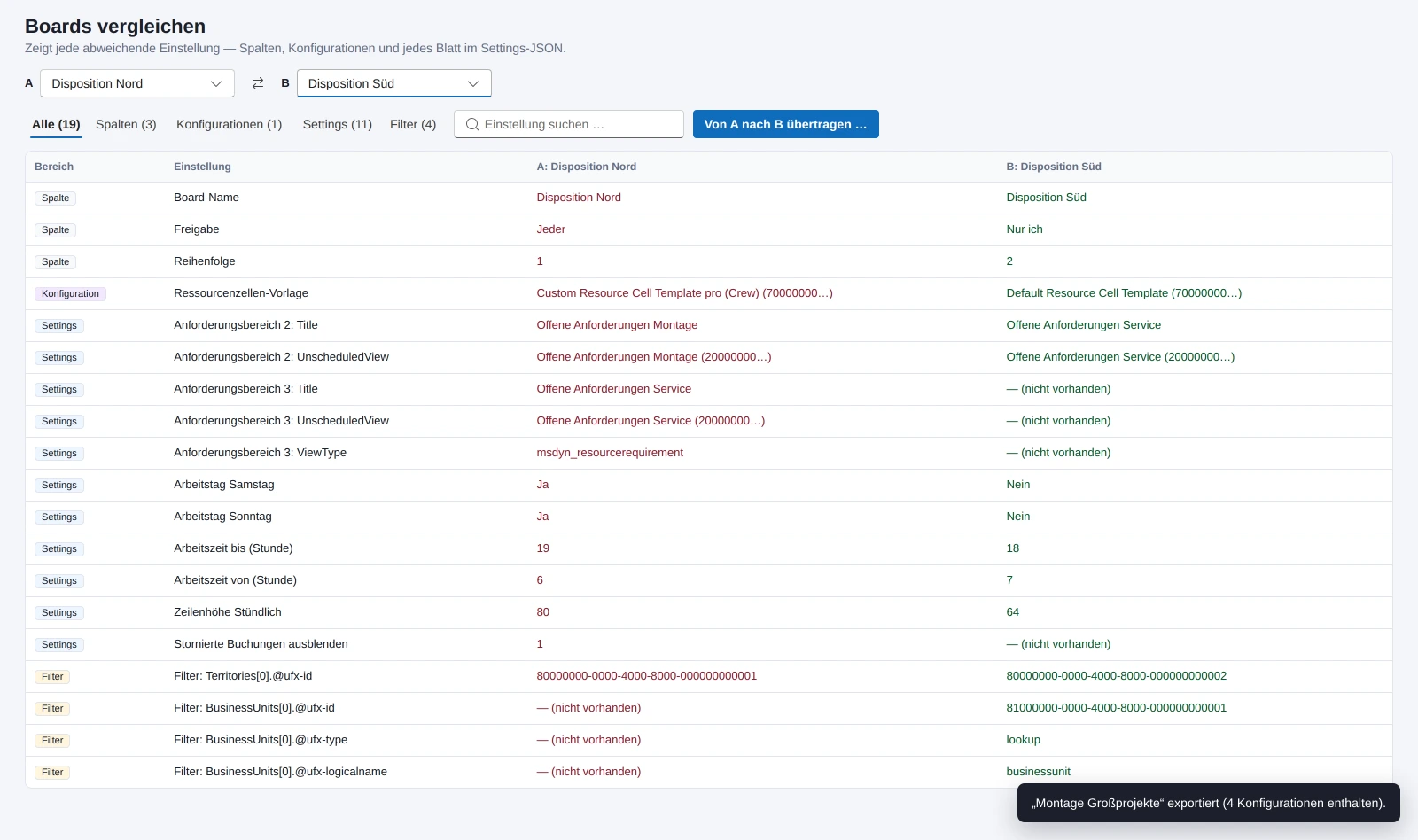
Two boards field by field: columns, the three configurations and every value in the settings JSON, filterable by area and searchable. Two boards that behave differently show the reason here. “Transfer from A to B” jumps straight into “Adjust several” with the fields preselected.
Columns, configurations, settings
Straight into the transfer
Two boards field by field. What differs stands side by side in red and green.
Adjust several
A template board, a selection of configurations, settings keys, filter values and columns, and the target boards. Before applying there is a preview per board, afterwards the result per board. In the “Change owner” mode several boards get a new owner; system boards and boards that already belong to them are skipped.
Preview per target board
Owner for several boards
Help in the app
A panel from the right over the app, the unsaved draft is preserved. Fifteen sections from overview to frequently asked questions, a table of contents with search and highlighting. “Help” in the header opens at the current area, the question mark next to the tabs at the current tab.
Explains inheritance, shared configurations, filters without effect
Export and import: a board into another environment
A board consists almost entirely of IDs, and only some of them are the same in every environment. The export therefore writes a package: the board with all columns, settings and filter values, every referenced configuration with its content, plus name and table of every view, the table of every schedule type, the name of the time zone, and table and primary name of every record in the saved filters. Not in the package: shares, owner, history.
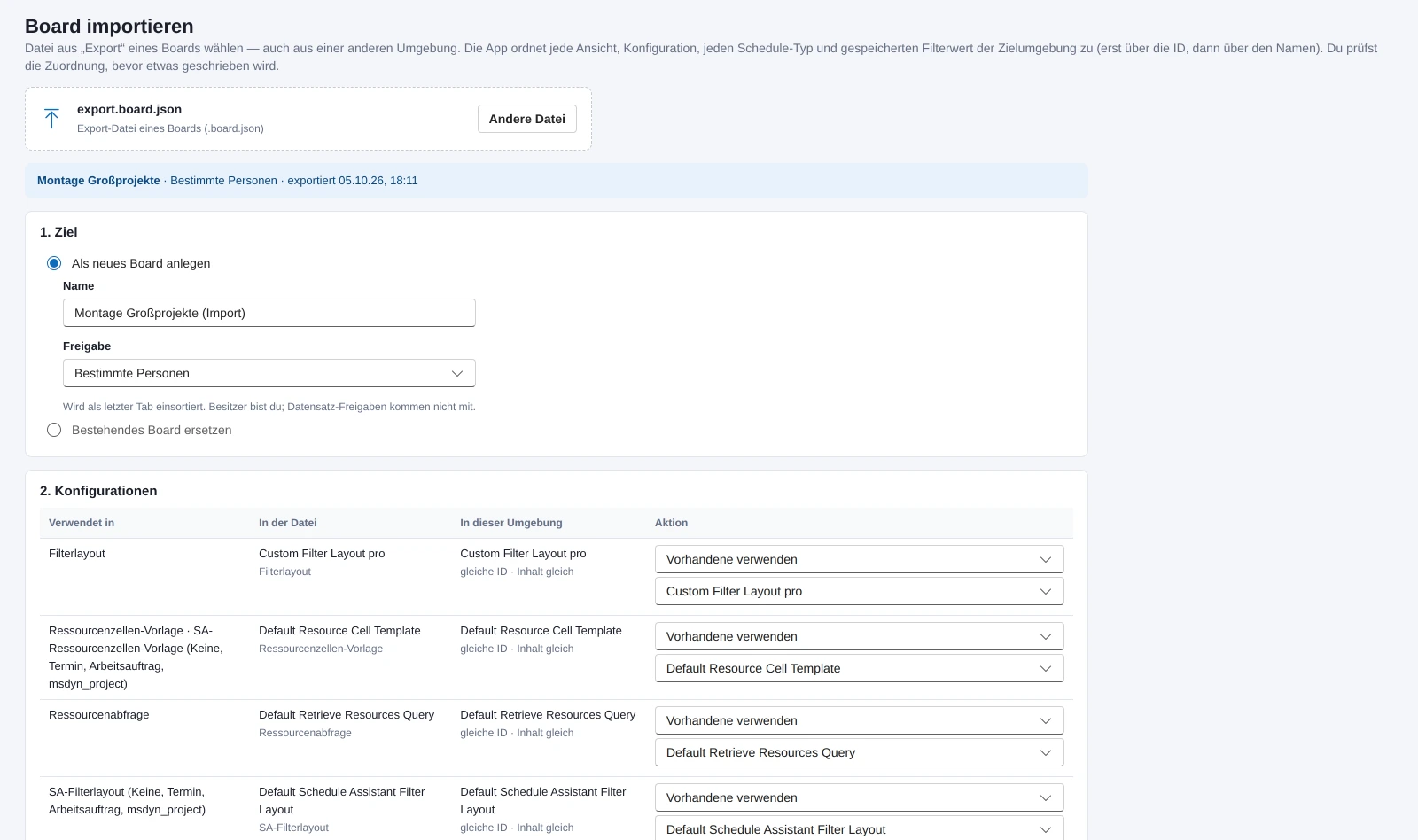
The import maps every ID to the target environment, first by ID, then by name, and every row can be changed. Configurations are reused, created, overwritten with the file's content or left empty, with a content comparison and a warning about which boards still use them. What has no counterpart drops out cleanly instead of staying behind as a dead ID. The target is a new board or an existing one that gets replaced, with diff preview and history.
Configurations with content in the package
Mapping by ID, then by name
New board or replace an existing one
The import: every configuration from the file gets a counterpart in the target environment or is created. Nothing is written before the mapping is settled.
Across the app
What applies everywhere, regardless of the area.
Protection rules
Boards with share type “System” and the fixed boards of Universal Resource Scheduling can neither be deleted nor deactivated nor renamed. The “Initial public view” has a different ID in every environment and the share type “Just me”; it is therefore recognized by its name in three languages and protected from deletion. A copy is never a system board.
The settings JSON is changed path by path and never rebuilt. A template the board does not set stays inherited and is not written into the board as a copy until someone explicitly wants that. Every save shows the diff first.
Permissions and limits
Everything runs under the signed-in user's account. Sharing and metadata go through the Dataverse connector on a user connection, deliberately not on a service account: otherwise any user of the app could share arbitrary boards with its permissions. Changing the owner requires the “Assign” privilege on schedule board settings. In the Power Apps host, errors surface all the way to the UI, there is no silent fallback to sample data, so that a write never appears to succeed.
Deliberately not included: editing the retrieve resources query itself, it is read-only; the schedule assistant configurations in the form, JSON only; a central history, it lives in the browser.
Data path
Boards, configurations, booking setups, views, users, teams and time zones come through the code app's generated data sources. Sharing reads through the access table and writes through the actions GrantAccess, ModifyAccess and RevokeAccess; tables, columns and relationships for the field pickers come from the environment's metadata, cached per session. Without metadata the fields stay free text.
The owner change is an update on the owner field, the Web API form of “Assign”. Access teams cannot own anything and do not appear in the search. The preview of the cell template is rendered by a small Handlebars interpreter of its own, because the library compiles with dynamically generated code; only the helpers from the Microsoft samples are reproduced, anything unknown is reported rather than guessed.
How it is built
The UI hangs on a service interface, not directly on Dataverse. Without a connection the app runs with sample data in memory, which makes demos and development possible without a tenant; a note in the header shows the mode. The UI uses Fluent UI v9, the same library the Power Apps modern controls are built on, and wraps its columns by the width available in the host, not by the window width.
Settings model, protection rules, filter layout XML, query analysis, people search, transfer package, templates, Handlebars interpreter, line diff and colors are pure functions with tests, separate from data access. The booking tile builder writes in the style of the existing template, so that the diff only shows the change.
More than one team on the schedule board?
If boards at your place are rebuilt by hand, two boards behave differently and nobody can say why, or a board needs to go from the test environment to production, send me a short note. The app runs in the customer's tenant, without a service account.