A Power Apps Code App that manages Dataverse solutions along the whole path: create and track working solutions, merge feature and bug solutions into a release, check the release before the import and verify it afterwards. On top of that come configuration cockpits and operational views that the admin center either makes tedious or doesn't offer at all.
Type
Power Apps Code App, runs in the customer's tenant
Stack
React, TypeScript, Vite, Fluent UI v9
Data
Dataverse Web API and the Microsoft Dataverse connector
Scope
21 workspaces in four groups
On this page
What it is for
In environments that have grown over the years, there is rarely much debate about what should be deployed. The debate is about what goes wrong along the way: a dependency that is missing in the target. An environment variable without a value. A connection reference that isn't bound anywhere. An unmanaged layer that silently masks future deployments. A canvas app that arrives but reaches nobody, because sharing doesn't travel with the solution. A security role that was rebuilt by hand instead of transported and will quietly drift apart from tomorrow on.
Each of these questions can be answered on its own, given enough time and the right queries. The console answers them in one place, across all configured environments, and before anything is imported. It doesn't replace a pipeline. It tells you whether the next import will go through and what it will do in the target.
The screenshots on this page show the app with its built-in sample data, not with customer data.
Everything revolves around the Working Solution: a record with title, type, Azure DevOps ID, owner and deployment status, linked to the actual unmanaged Dataverse solution that holds the components. Creating one sets up both in a single step. Unmanaged solutions without a record still show up and are classified by their naming convention.
Manage
The daily path from a single change to a fully assembled release.
Workbench
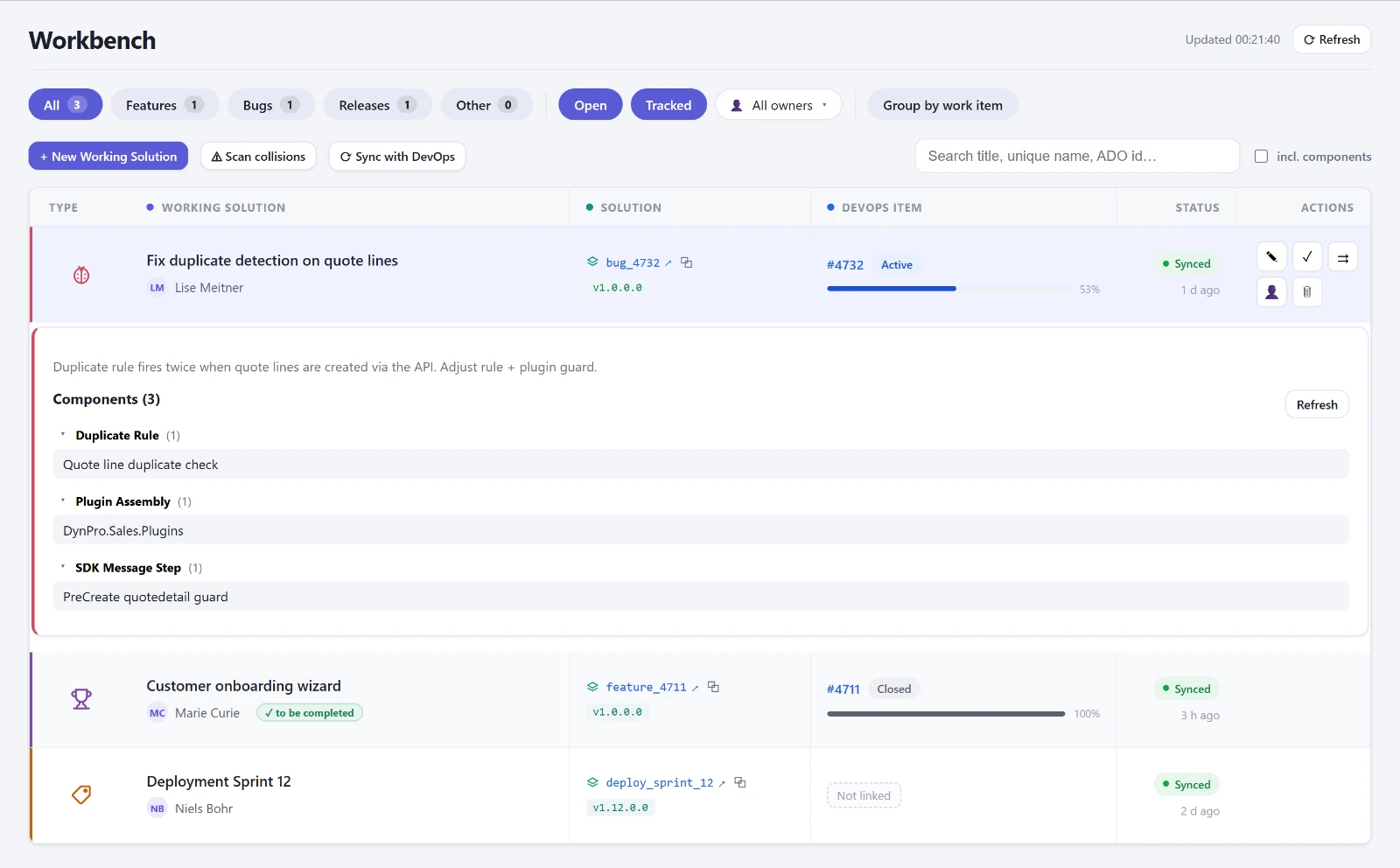
A list of all working solutions, filterable by feature, bug and deployment, with search across title, unique name and Azure DevOps ID. The incl. components switch also searches the display names of the components in the open solutions, which answers the question of which solution contains a particular table or flow. Creating a solution produces the record and the actual solution together, with a live preview of the unique name and a duplicate check.
Details inline below the row
Components grouped by type
Assign owner
Deep link into the maker portal
Delete with three seconds of undo
Workbench with an expanded row: description, components by type and the match against the Azure DevOps work item.
Collision radar
Loads the components of all open working solutions and flags every component that sits in more than one of them. That is exactly where whoever deploys last overwrites the other person's work. Affected solutions get a warning, and the detail view names the shared components and the solution on the other side.
Limited to the open set
Names the competing solution
Azure DevOps sync
A cloud flow syncs the status of the linked work items back into the working solutions. If a work item is set to Closed or Done while the solution is still open, the list marks the entry as to be completed and highlights the completion action. The flag is derived, not stored, and is recalculated after every sync.
Work item link per entry
Complete and reopen
Merge
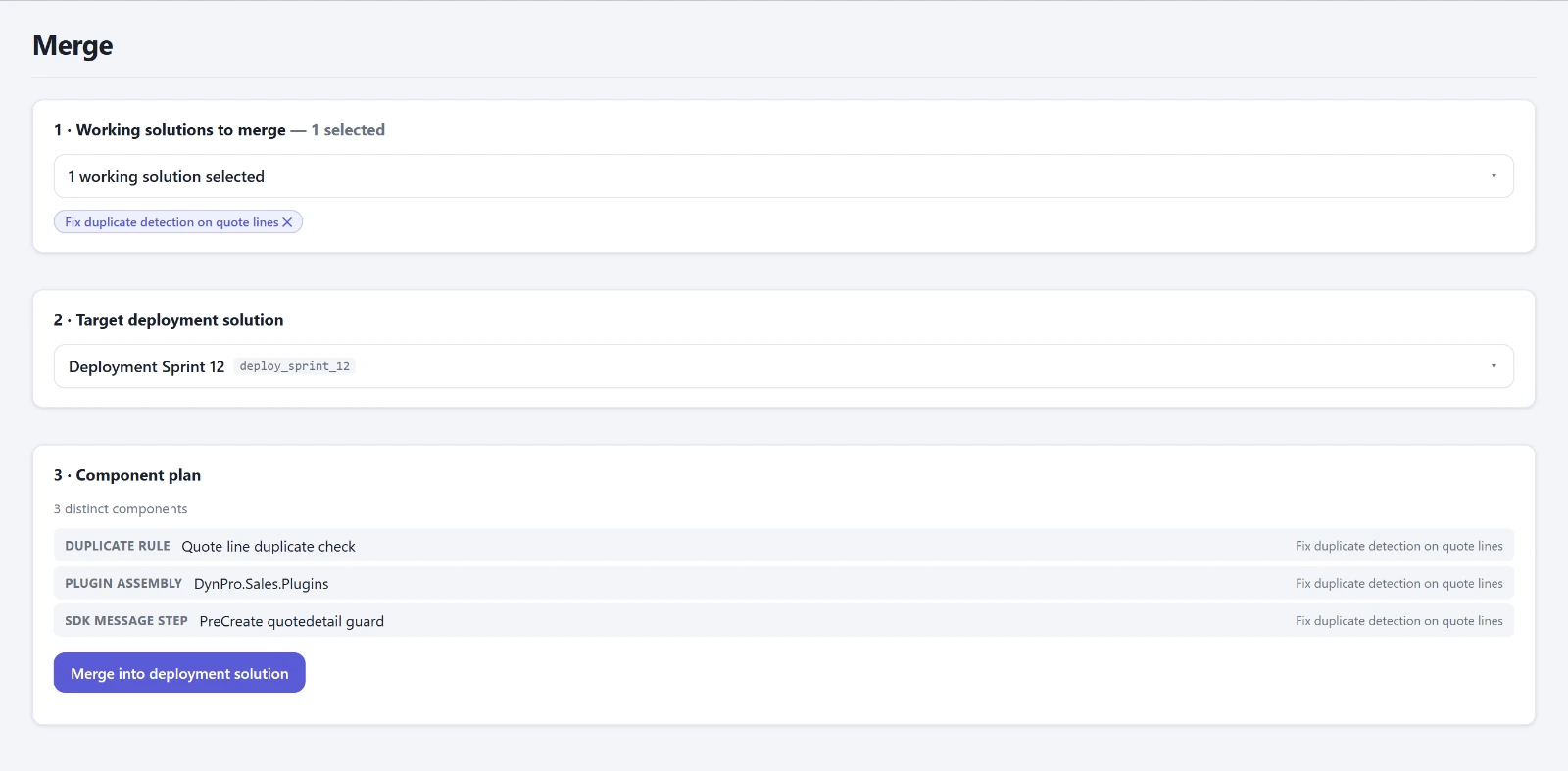
Choose a deployment solution as the target, tick the feature and bug solutions, review the component plan and merge. Conflicts are flagged, duplicates are skipped. Every run writes a history row with the count, the source solutions and the components added, which shows up as merge history in the release details.
Component plan before the run
Source solutions are stamped automatically
Merge in three steps: choose the source solutions, choose the target release, review the component plan.
Merge Rules Deployment Manager
For each release you can define which component types are allowed to move at all: an allow list and an exclusion list. A type can be merged if it is on the allow list, or the allow list is empty, and it is not on the exclusion list. Blocked components appear grayed out in the plan and are counted separately during the run.
Configurable per release
Read-only in the Workbench
Release Notes
Generated from the merge history: the included source solutions with their Azure DevOps links and all added components by type. You can switch between Markdown and plain text. Publishing freezes the current state as a versioned snapshot. From the second time on, the draft is incremental and lists only what has been added since the last publication.
View and copy for everyone
Publishing for Deployment Managers
History of all versions
Timeline
What went where, and when. For a selected release, merge runs, published release notes and the imports per configured environment sit on one shared timeline, newest first, with a status color per environment. Filters per event type. An environment that can't be read at the moment produces a notice instead of blocking the view.
Purely visualizes existing data
Validate
Checks before the import and verification afterwards. Everything in this group requires the Deployment Manager role.
Deployment Readiness Deployment Manager
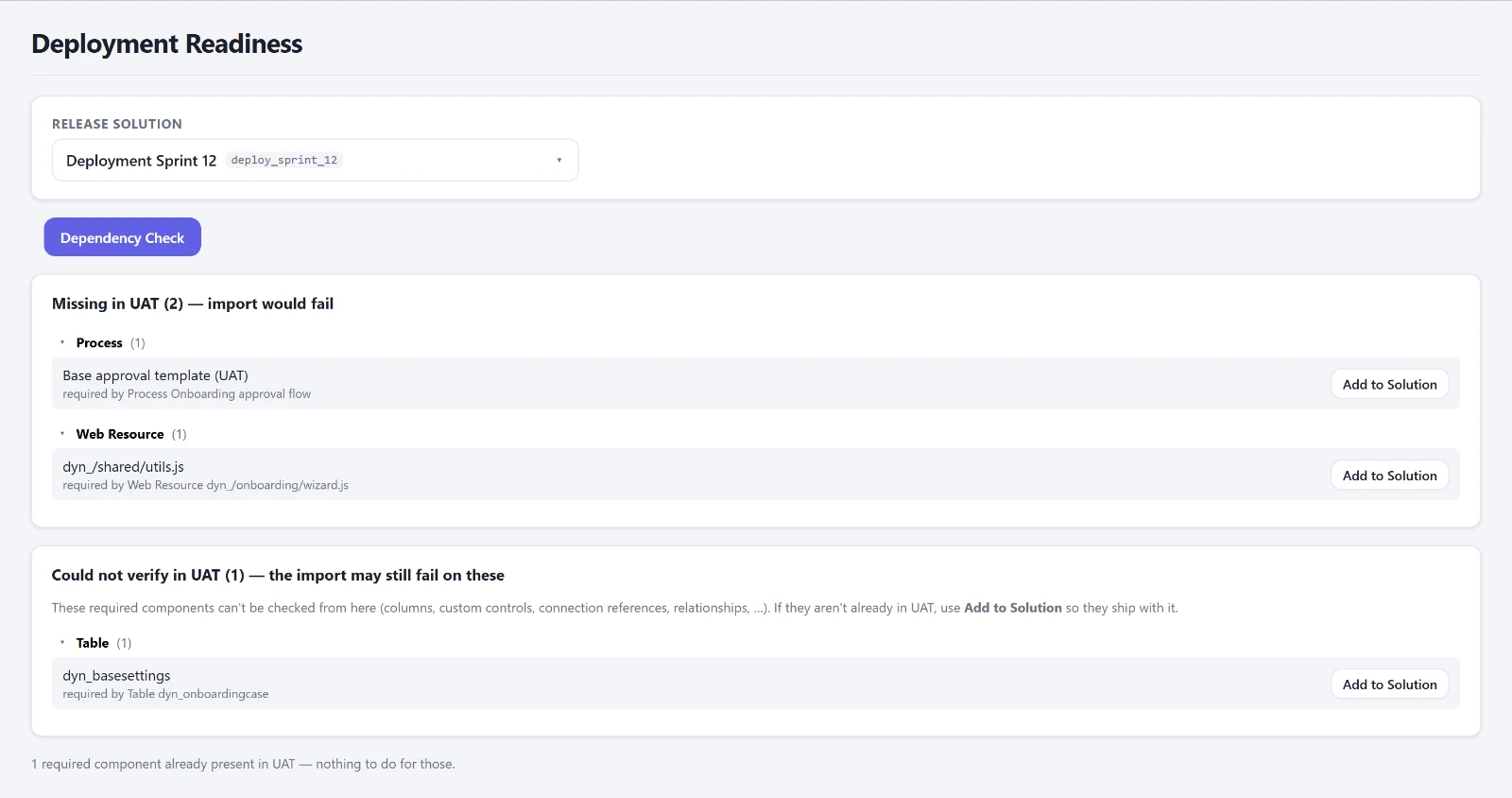
Checks a release solution against the target environments for components that are needed there but are neither shipped with it nor already present. This is exactly what makes an import fail. Each finding offers Add to Solution to add the missing component right away. Types that are matched by name count as present if the target knows them under the same name.
Before the import
Add the missing component directly
Shown separately: what is missing in the target and will make the import fail, and what can't be checked from here.
Import History Deployment Manager
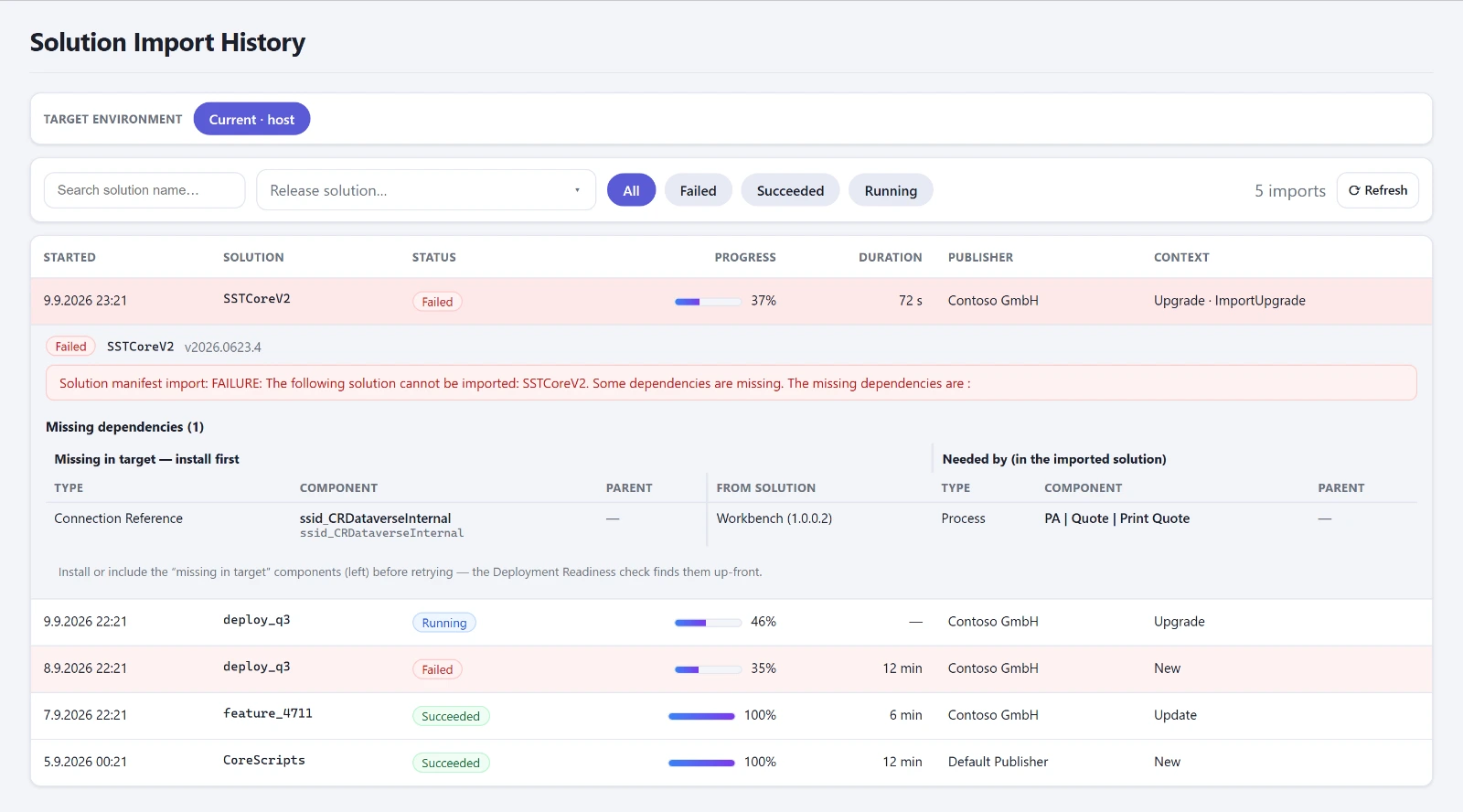
The import history of a selectable environment with start time, solution, status, progress, duration and resolved publisher. Expanding a row parses the import log: the manifest result and, at the core of it, the missing dependency errors as a precise table. On the left the component that is missing in the target, with its parent object and source solution, on the right the imported component that needs it.
Heavy log loads only on expand
Server-side search by status and solution
A failed import, expanded: on the left the component missing in the target, on the right the one that needs it.
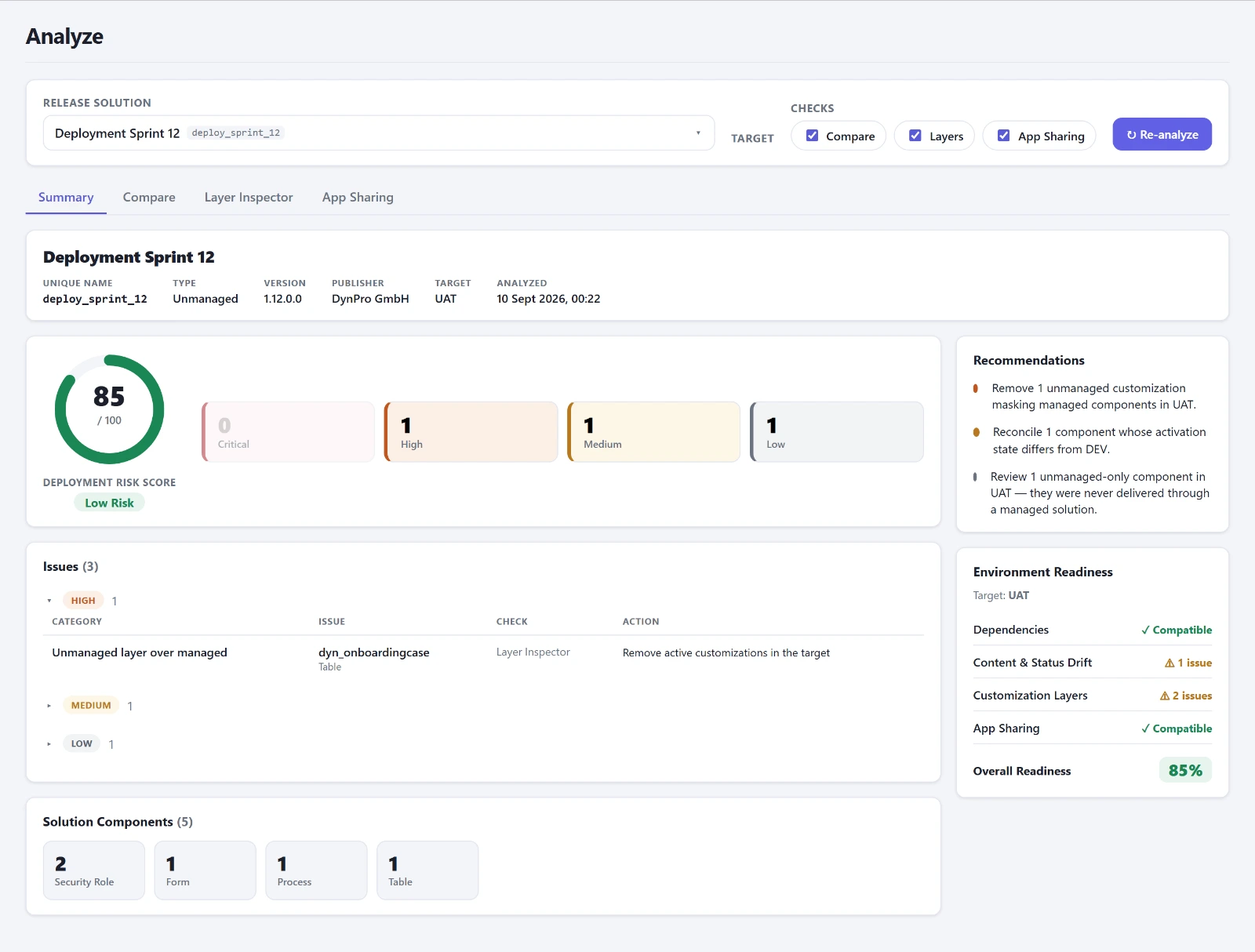
Analyze Deployment Manager
One click on Run Analysis runs dependencies, comparison, layers and app sharing against the target environment in a single pass. The result is condensed into a Deployment Risk Score from 0 to 100, cards by severity, a table of the most important findings, a component overview by type, derived recommendations and a readiness matrix per area. The three focused individual checks are included as tabs and share the release solution you select once at the top.
One pass, condensed into a risk score, findings by severity, recommendations and a readiness matrix.
Compare
Cloud flows, workflows, business rules, plugin steps and scripts across all environments, grouped by type. Missing components and status drift are flagged and filterable, for example a flow that sits in PROD as a draft. The modified date deliberately doesn't count as a drift signal, because every solution import overwrites it.
Layer Inspector
Checks all components against the layer stacks in the target. It finds unmanaged layers on top of managed components, meaning direct customizations that mask future deployments, as well as unmanaged-only and plainly missing components. Each finding links to the layer page in the maker portal of the target environment.
App Sharing
Checks who canvas apps and custom pages are shared with in each environment. A solution import doesn't carry sharing over, so a deployed app reaches nobody until it is shared in the target. Custom pages work differently: they depend on the roles of the model-driven app.
Env Config Deployment Manager
Environment variables and connection references side by side across all configured environments, matched by their import-stable name. It shows the three typical deployment gaps: no value and no default in an environment, an unbound connection reference, and a setting that exists in one environment and is missing in another. Secrets stay masked.
Filter to one release solution
Number of cloud flows using each reference
Split into active and inactive
Deep link into Power Automate
Audit Config Deployment Manager
The audit configuration of a selectable environment: the organization's main switch with its retention period, and below it the setting per table and per column. A table only really audits when both are on, which is why the case configured but off gets its own flag. The same goes for an audited table without a single flagged column, which therefore logs nothing but an empty shell.
Columns load on expand
Read-only
Dual-Write Maps Deployment Manager
The table maps of a selectable environment, grouped by name, with a count of the saved versions. What it shows is not the highest number but the version actually running according to the runtime configuration, otherwise the last saved one, and it says so openly. If a newer version sits above the running one, the row marks it as not in operation. The menu item only appears when dual-write is installed in the environment.
Source and target table with direction
Field mapping in an overlay
Marker for unmanaged layers
User Settings Deployment Manager
An inventory of the personal settings of all active users per environment: time zone, currency, UI language and formats. The detail dialog shows a live preview of the format fields. Deployment Managers can change and save the values, with a confirmation step and a much stricter prompt in PROD.
Comparison across environments
Roll out settings to multiple users
Process Comparer Deployment Manager
All process types of a release solution, that is cloud flows, classic workflows, business rules, actions and business process flows, as a status matrix across the environments. Cells that differ are highlighted. Each cell shows the owner, a switch to turn the process on or off, and a deep link. In definition mode the check runs against a configured target state, and then the host environment counts as well.
Group by type or area
Bulk actions via row selection
The run survives switching tabs
Plugin Comparer Deployment Manager
The same principle for the plugin steps of a release solution, plus the assembly version per environment. This shows whether a step exists but runs against an older assembly. Enabling and disabling work per cell, with confirmation and a stricter prompt in PROD.
Assembly version per environment
Enable and disable per cell
Role Comparer Deployment Manager
Answers the question of whether the security roles arrived intact. By default only your own roles count, the roughly 250 out-of-the-box roles stay hidden, and you can narrow the comparison to one release solution. Matching is by name, not by ID, because a role GUID only survives a clean solution transport. Same name with a different ID means the role was rebuilt by hand instead of transported. It looks right today, quietly drifts from tomorrow on and is never updated by any import. That is exactly what the rebuilt flag is for.
Each cell shows the number of privileges, the managed state and how many privileges this environment grants differently from the reference. An environment that couldn't be read shows a question mark and feeds into no finding, so it never counts as clean. The workspace is read-only on purpose: a drifting role should be transported. Editing it in the target creates exactly the unmanaged layer that the Layer Inspector will report afterwards.
Drill-down
For each role, every table and action it grants anywhere, with the depth per environment from user to organization, optionally showing only the differences. Below that, the remaining privileges.
Freezing a baseline
The current state can be frozen as a named snapshot. After that, the question changes from “do the environments match” to “what has changed since the freeze”, and each environment is checked against its own earlier self.
Security concept document
A snapshot produces a finished document with an environment overview and a privilege matrix. With a second snapshot, it opens with a chapter of changes listing every privilege that shifted. Export as Markdown or text.
Operate
Day-to-day operations: what the system is doing right now, what is in the database, who is allowed to do what, and how configuration data moves between environments.
Plugin Traces
A stream over the plugin trace logs that reloads every 15 seconds and pauses as soon as the browser tab moves to the background. Filtering happens server-side by time window, type, message, table, synchronous or asynchronous, and optionally exceptions only. The heavy message block loads only when you expand a row, never in the stream itself.
Correlation timeline by call depth
Runtime aggregates per plugin and message
Switchable trace level
Role Analyzer Deployment Manager
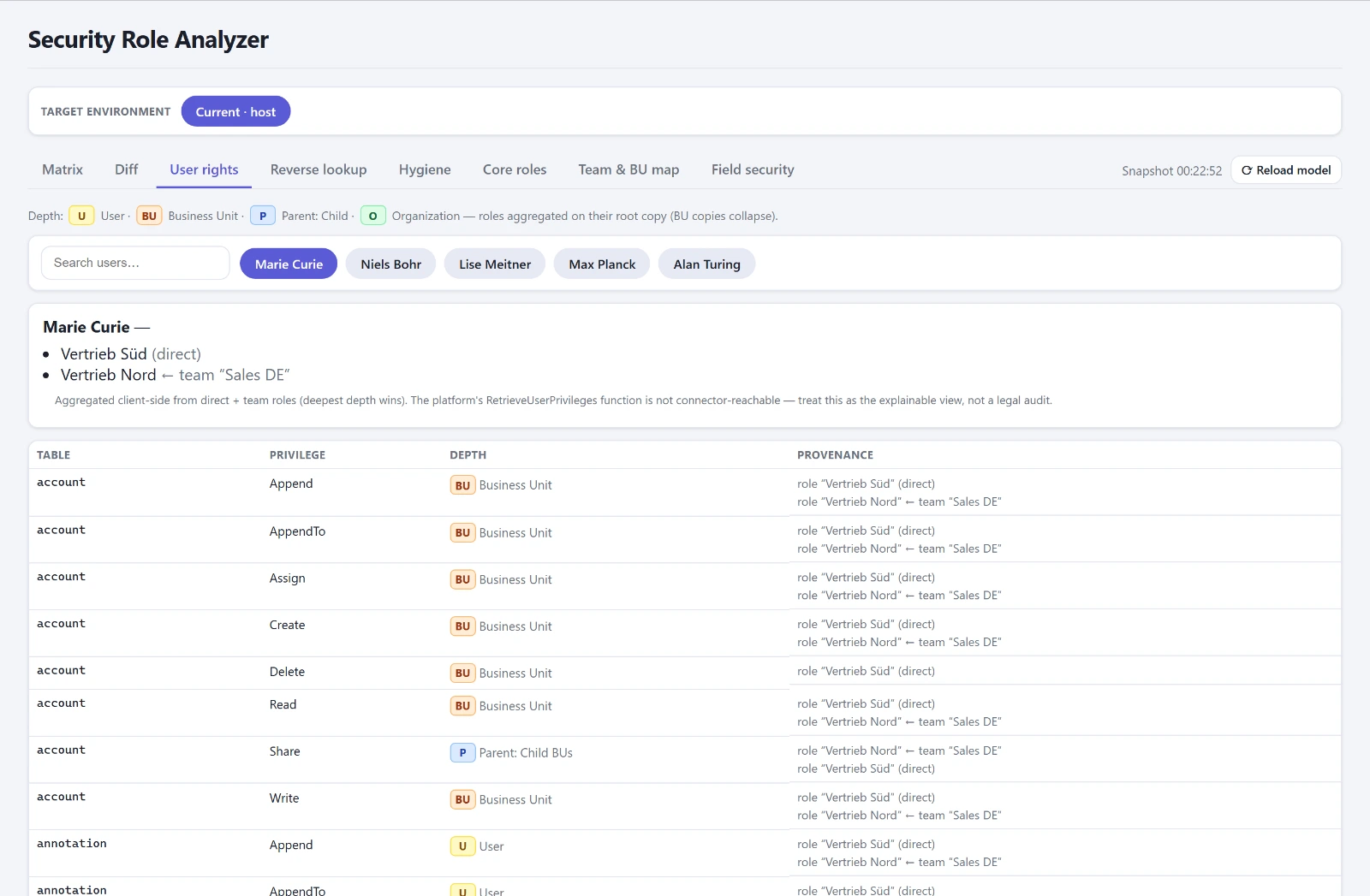
Works on a cached snapshot of the security model. It contains the matrix of role, table and privilege with depth, a comparison of two roles, a user's effective permissions along with where they come from, through direct roles or roles inherited via teams, a reverse search for everyone allowed to perform a given action, and hygiene findings such as unassigned roles.
Org chart of business units and teams
Field security at column level
Core roles bundle privileges granted more than once
A user's effective permissions, each privilege with its depth and its origin in direct roles or roles inherited via teams.
OData Browser Deployment Manager
Free browsing of the database per environment through the Dataverse Web API. Pick a table and select columns from a list. Columns that can't be selected are grayed out along with the reason, and lookups are resolved correctly on their own. The filter builder only offers operators that fit the column type, and choice values appear as labels instead of numbers. The query line is editable and linked to the builder in both directions: whatever the builder can't represent stays verbatim and is marked as an extended filter instead of being rewritten.
Clicking a row opens the full record, without any column selection, because the panel is meant to show what is actually stored. Lookups are clickable everywhere in it and take you to the target record with a way back, and a separate tab lists the dependent tables and jumps into them pre-filtered. A second mode runs FetchXML directly, and the metadata sets are available in the table picker so you can browse the schema itself.
Input help with autocompletion
Validation hints that warn instead of blocking
Multi-column sorting and counts
History and saved queries per environment
Export as CSV or JSON
Read-only
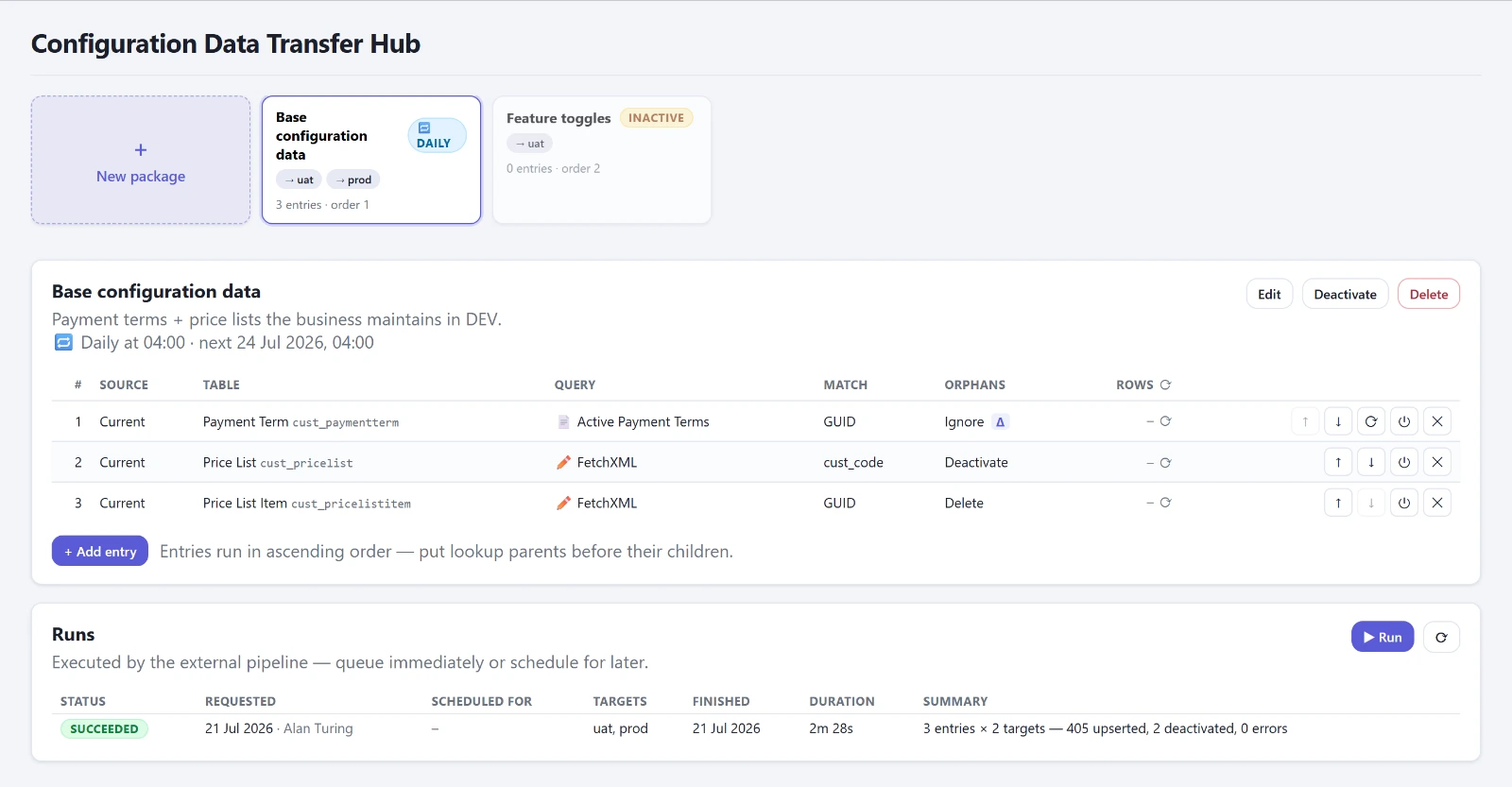
Data Transfer Deployment Manager
The Configuration Data Transfer Hub moves configuration data between environments. A package consists of target environments and an order. An entry consists of a source environment, table, filter and columns, defined either through a system view or directly as FetchXML with a preview and row count. Then comes record matching, either by GUID or by up to five business columns, and the question of what happens to target rows that the source no longer delivers.
Execution never happens in the app's session. It runs in cloud flows that are installed alongside the app. The Write plan section shows in advance, per column, what the executor will do with it: copy it, bind it as a reference or skip it with a reason. It also names the awkward cases, such as references that get dropped, or lookups to tables that the package doesn't transport at all or only transports later. An empty plan blocks saving.
Dry run that counts and logs but writes nothing
Start immediately or schedule
Recurring schedules
Delta transfer per target environment
Result log fills up while the run is in progress
Row limit is reported instead of writing partially
A transfer package with its entries and the result of the last run per target environment.
Reference
Setup and the handful of addresses you need all the time.
Environment Setup
A guided first-time setup for a new environment. If the app starts without a configuration, the wizard blocks the screen and creates the required records. It offers the environments reachable through the connector, fills in the ID of the current environment by itself and suggests a publisher and the Deployment Manager role. Saving can be repeated without creating duplicates, and the same view is used later for updates.
Only environments, publisher and role are required
Loads the configuration without a page reload
Links
A matrix of the addresses you need all the time: one row per link type, one column per environment. It covers the system app, Web API, diagnostics, the classic settings pages, maker portal and Power Automate as well as the admin pages, plus a global block with the admin center, capacity, Release Planner and Service Health. Everything is derived from the environment configuration alone, without any data access of its own.
Copy button per row
Open to all users
Across the app
What applies everywhere, regardless of the workspace.
Permissions
The app has two levels. Workbench, Merge, Release Notes for reading, Timeline, Plugin Traces and the link collection are open to all users. Everything else requires a configurable security role that has to be assigned to the user directly. Locked menu items stay visible, but they are grayed out and labeled as locked.
Write actions run as the signed-in user, not as a technical service account. Where an action hits the production environment, the confirmation prompt is deliberately much stricter than elsewhere.
Environments
The app is installed in one environment and reads into the others from there. Read access across environment boundaries goes through the Microsoft Dataverse connector, while write access technically reaches only the app's own environment. When another environment is selected, write actions are therefore switched off, with an explanation of why.
An environment that can't be read at the moment never causes an abort anywhere. It appears as an open notice and is never rated as clean in any finding.
Interface
Built like a Dynamics 365 app: a dark header bar with the logo on the left and a status indicator on the right, and below it a sidebar that runs the full height. Navigation is split into four groups, and exactly one of them is open at any time, because 21 entries wouldn't fit on a laptop screen otherwise. Which group is open follows the active workspace automatically.
The header bar holds two kinds of help: an introduction for new colleagues that explains the path from solution to merge, and a reference that describes the workspace that is currently open.
How it is built
The interface talks to a service interface, not directly to Dataverse. That lets the app run with sample data even without a connection, which makes demos and development possible without a tenant. The header bar always shows which of the two modes the app is running in.
Evaluation logic lives in pure functions with tests, separate from data access. Expensive views load only when needed, and heavy content such as import logs or trace messages only when you expand the row in question.
Interested in the console or in a system review?
The suite is currently being built out into a product for the DACH market. If you would like to see it in your own tenant, or first want to know what is actually going on in your environment, send me a short note.