A Power Apps code app for Dataverse environments with more than one language. For each solution and language, it shows which labels are missing or were probably never translated, lets the business team fill the gaps directly in a matrix or via CSV, and plays the result back through the standard Dataverse import, with progress, log and publishing.
Type
Power Apps code app, runs in the customer's tenant
Stack
React, TypeScript, Vite, Fluent UI v9
Data
Dataverse translation export and import, metadata only
Scope
Tables, columns, choice values, forms, views
On this page
What it's for
Dataverse keeps every label once per installed language: the display name of a table, every column, every choice value, every form and view name. If a translation is missing, French users see English field names. The standard way to fix that has been the same for years: export the translations, get a zip file containing an Excel 2003 XML file with thousands of rows, search it without any filter for whatever is missing, import, publish.
In practice, that means nobody sees what is missing and nobody keeps it up to date. Every release adds new columns, and the gap grows. Translation Studio turns the process around. It reads the same export, shows only the gaps, lets you fill them in place and writes the same file back with your changes. It changes nothing in the metadata by any other route.
Only metadata is involved, no business data. The screenshots on this page show the app with its built-in sample data, a fictional fleet management scenario in English, German and French, not customer data.
The app is fully built, runs end to end with sample data, including a simulated import, and has its first runs against a development environment with three languages behind it, including a real import. Use by the business department is coming up.
Studio
The workspace: load a solution, see and fill the gaps in the designer or in the table, play them back.
Solution and languages
A solution from the environment defines the scope. Unmanaged solutions can be edited, managed ones can only be viewed. The default solution is available too, with a note that its export gets very large. Because the export always contains the whole solution, the component types act as a filter, not as part of the scope. Target languages can be selected and deselected; the base language is always included and never editable.
Managed is read-only
Default with a size warning
A notice instead of an empty matrix when there is only one language
Filters and metrics
You filter by state, type, table and full text. The default is Gaps and edits, so a row you just filled stays visible instead of disappearing from the list. The type buttons show their counts, the table list comes from the environment's metadata, and the full-text search covers all texts, keys and component names. A bar per language shows coverage in percent along with the number of missing, probably untranslated and changed cells. Clicking a number sets the filter.
CSV export and bulk actions apply to the filtered rows
Designer: translate where users look
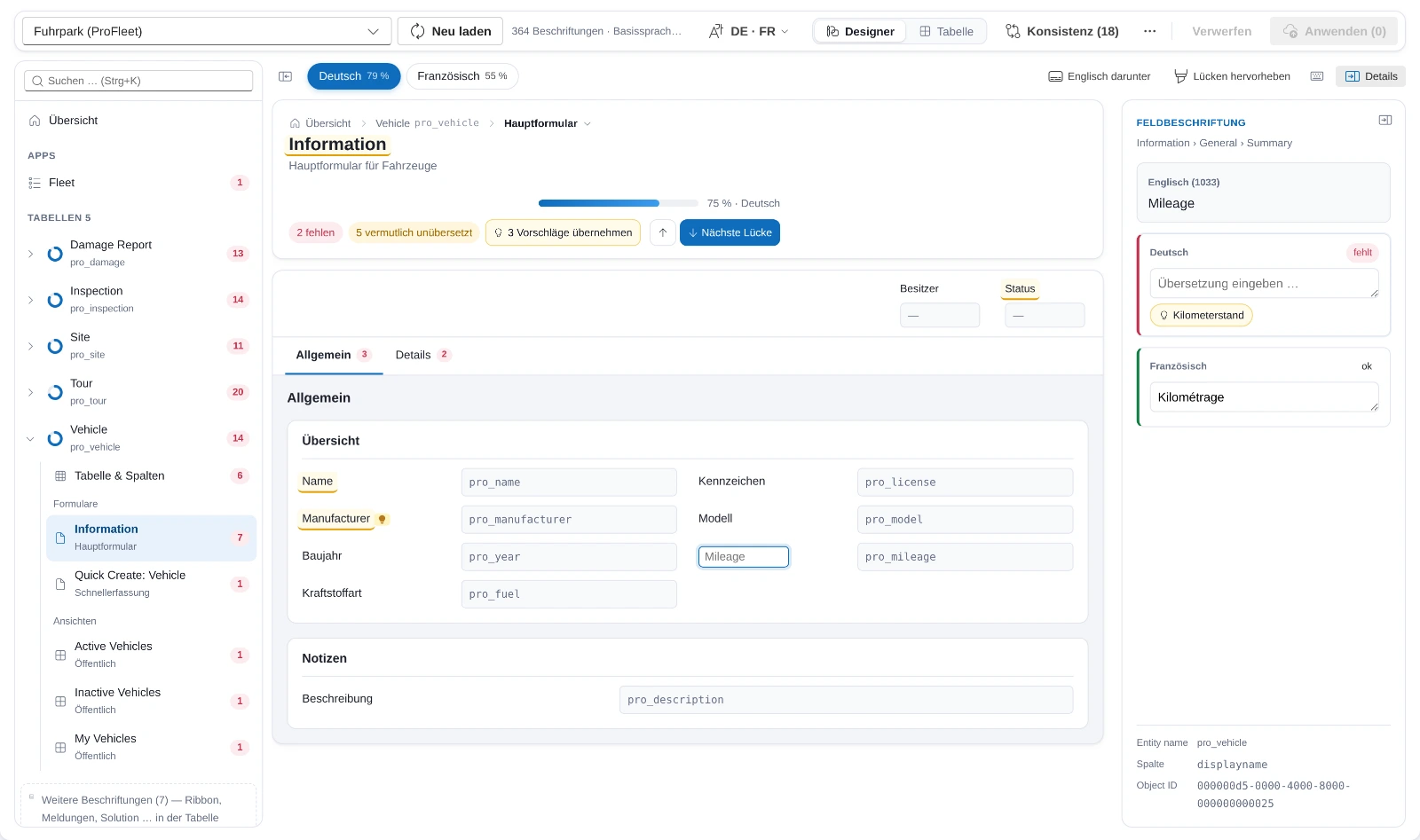
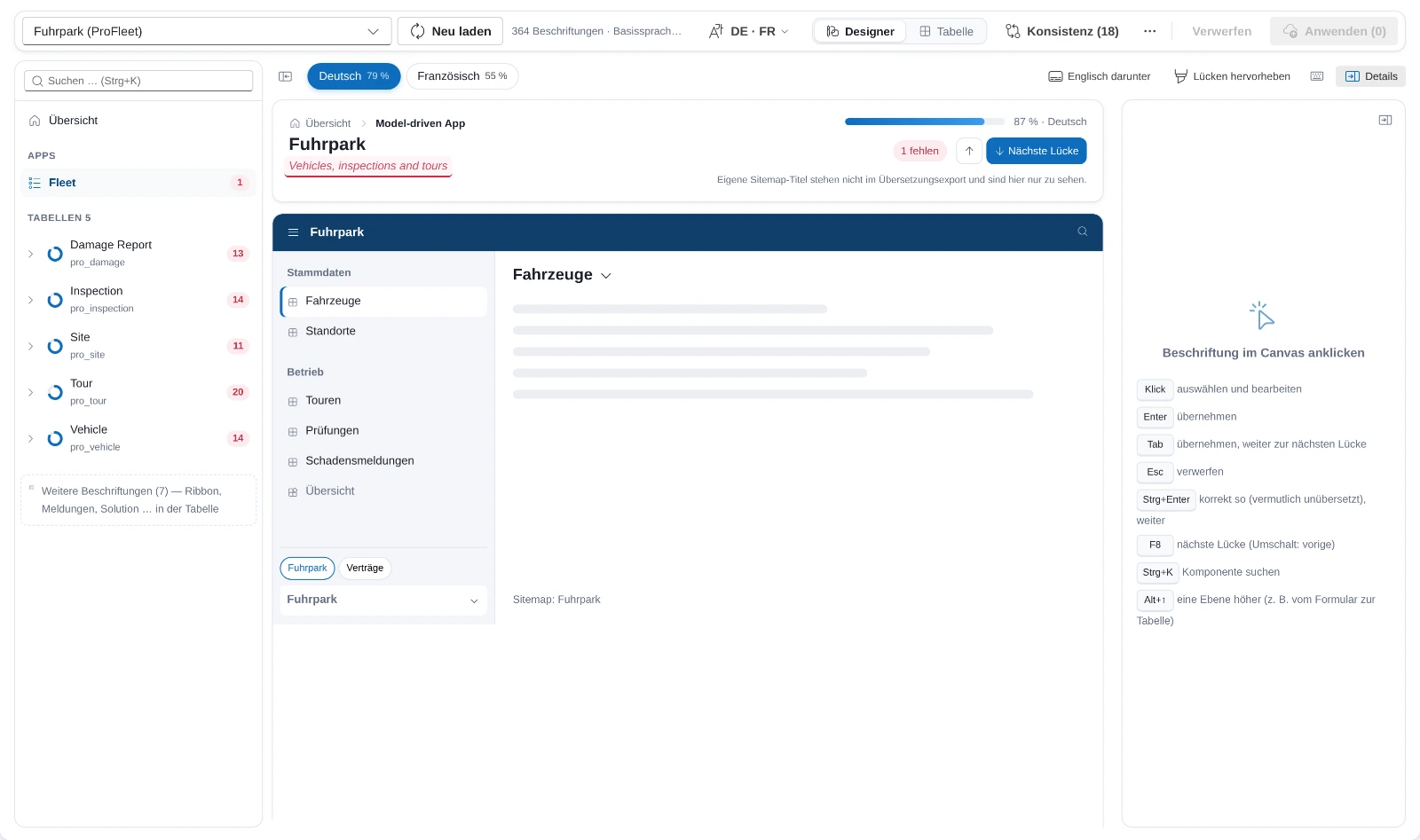
The designer is the default view after loading, the table is one switch away. On the left the components of the solution: apps, tables with their forms and views, dashboards, each entry with a ring for the share translated and a number for what is open, plus a search on Ctrl+K. In the middle the selected component, the way it looks in the app: a table's profile with names, forms and views including their type, columns and choice values per column; a form from its formxml with header, tabs, sections and fields; a view from its layoutxml with the column headers; a model-driven app from its sitemap with areas and groups. On the right, if you want them, the Details: the selected label in all target languages side by side, with glossary suggestion, “apply everywhere”, “correct as is” and undo. Both side columns can be hidden and resized, and the browser remembers that.
Editing happens right on the canvas: click, type, Enter. Tab applies and jumps to the next gap, across form tabs and app areas too, F8 jumps without applying, Ctrl+Enter marks “correct as is” and moves on. A light bulb sits on every gap the glossary has a suggestion for, and the head of the page applies all suggestions on the page at once. A breadcrumb leads from the overview through the table to the form and back, Alt+Up goes one level up. Texts the export does not contain, such as sitemap titles and custom form texts, are shown dashed red and read-only. All changes from designer and table end up in one list and go out together with Apply.
Forms, views and sitemaps live from the environment
Tab from gap to gap
The same change list as the table
The main form of a table: tabs with the number of open labels, a missing field opened for typing, on the right the same label in all languages with the suggestion from the glossary.A model-driven app with its navigation from the sitemap. The app's subtitle is dashed red: it is not part of the translation export, the designer only shows it.
Gap matrix
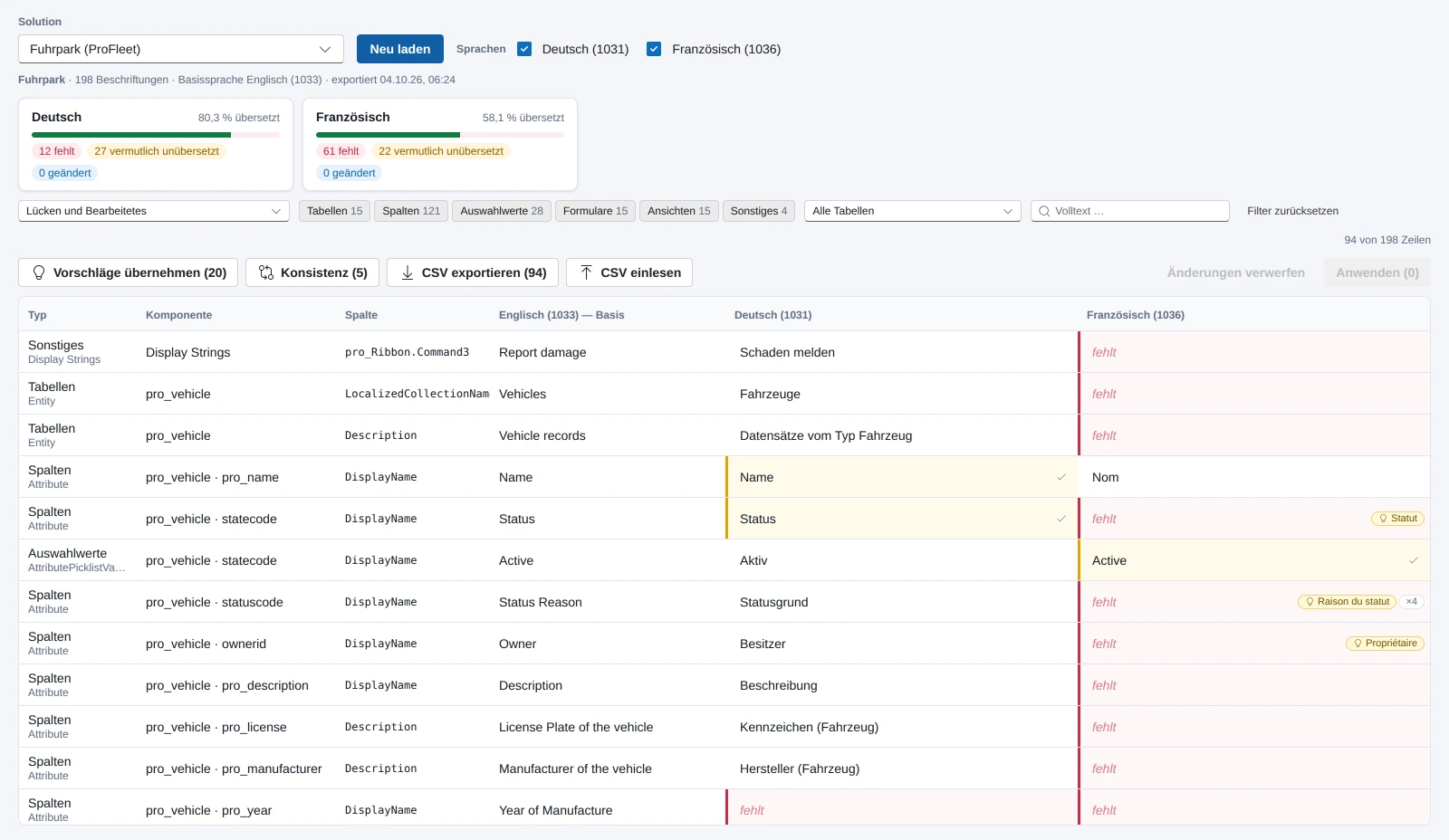
The table view, one switch away from the designer. Each row is one label: the type, the component with table and name where the metadata can resolve them, the affected column such as display name, description or plural name, the base language text as read-only, and one editable cell per target language. Each cell has one of four states. Missing when the target language is empty. Probably untranslated when the text is identical to the base language. That is a guess, since “Status” is German too, so you can mark the cell as correct, and the mark is kept per solution. Changed as long as an edit has not been imported yet, with undo. And ok.
The matrix renders only the visible rows, so it copes with tens of thousands of labels. Enter commits, Esc discards. It rejects texts over 500 characters because the import would fail on them, and an existing translation cannot be cleared, because it is not documented whether an empty cell means “delete” or “unchanged” on import.
Four color-coded states
“Correct as is” mark per solution
Custom windowing, no grid library
The matrix of a solution with two target languages: metrics per language, the filter bar, and each cell with its state and glossary suggestion.
Glossary and consistency
If the same base text is already translated elsewhere, the cell shows a suggestion. One click applies it, a second button applies it to all gaps with the same base text in that language, and Apply suggestions in the toolbar does the same for all filtered rows at once. If there are several translations, the most frequent one wins. The consistency report lists base texts that are translated differently within one language, such as “Notes” as both “Notizen” and “Anmerkungen”, and unifies them on request.
Suggestions never write on their own
Applied suggestions stay visible as changes
CSV round trip with the business team
The filtered rows go out as CSV, semicolon-separated and UTF-8, so Excel opens them directly. Every row carries a stable key, and texts that look like formulas are protected. Someone without Dataverse permissions fills in the language columns and sends the file back. When the file is read back in, a preview shows what will change and what will not be taken over: unknown keys, the base language, texts over 500 characters. Empty cells mean unchanged.
Only the gaps, not the whole file
Diff preview before anything is applied
Apply: import, progress, publish
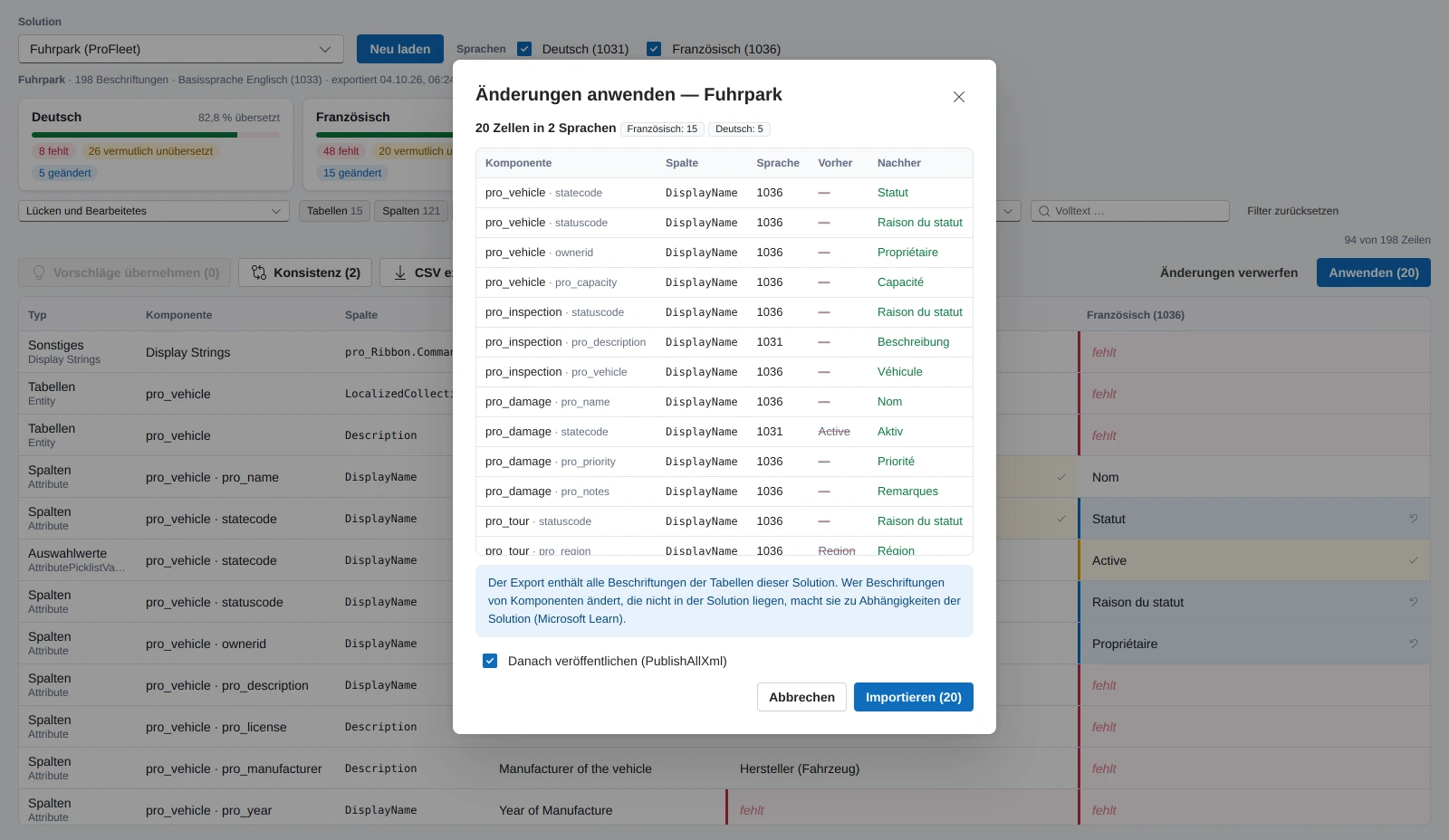
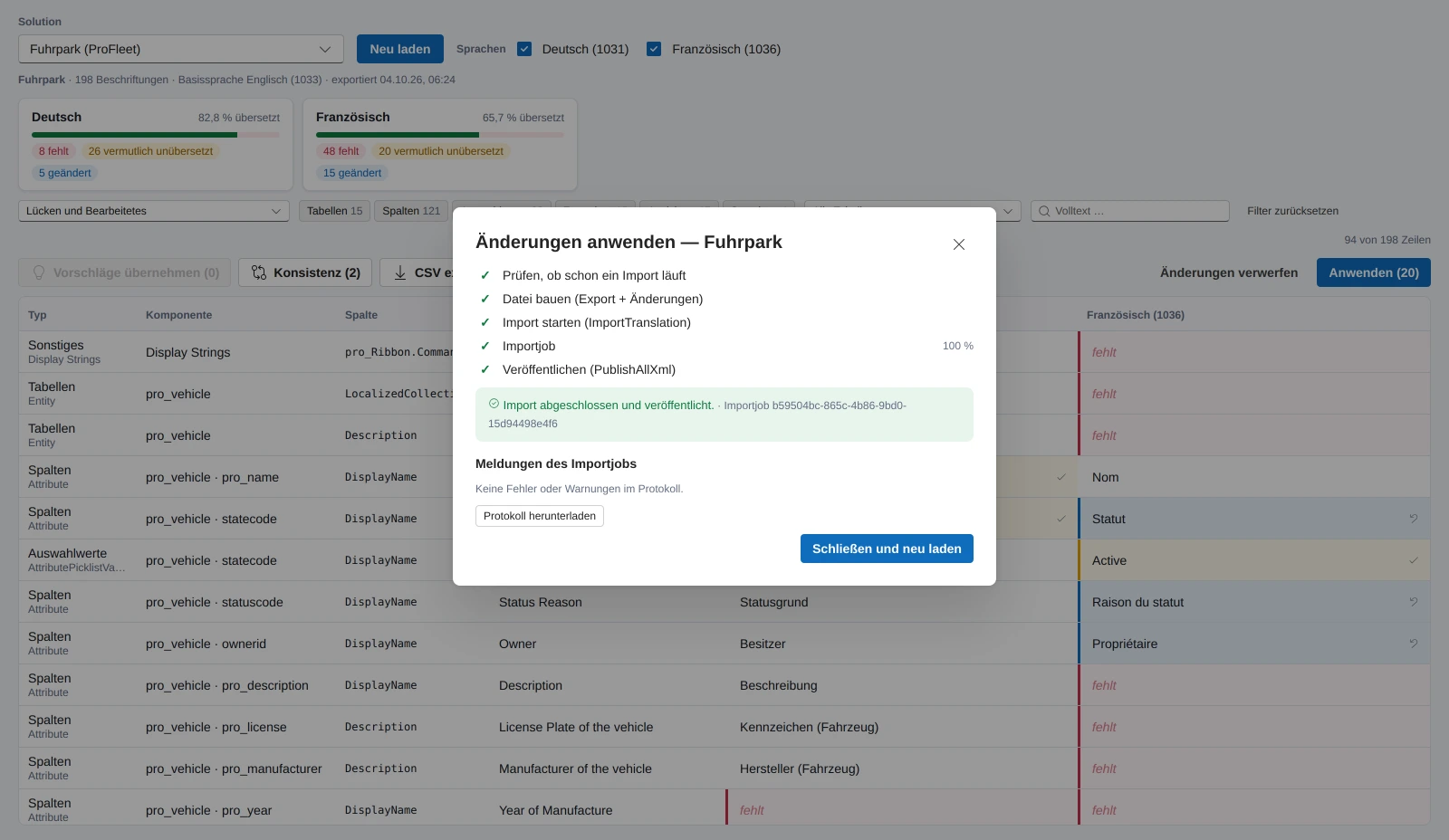
The preview shows only the changed cells, counted per language, with before and after. The import then runs in five steps. Check whether an import is already running in the environment. Build the file, meaning the export plus the changes, without removing or reordering a single row. Start the import. Read the import job every two seconds, paused while the browser tab is in the background, with further editing locked in the meantime. Finally, publish: on by default, can be switched off and run later.
The result lists the import job's messages, errors and warnings per row, and offers the log for download. Close and reload then exports again, so the matrix shows the state in Dataverse rather than the local one.
One import at a time
Progress from the import job
Log for download
The preview before the import: only the changed cells, each row with component, column, language, before and after.After the import: five completed steps, the import job with its ID and the log for download.
Other areas
What else is there besides the studio.
History
Every import is recorded in the history with timestamp, solution, changes per language, result, import job ID and whether it was published. In the first version the history is stored locally in the browser, covering the last 25 runs. A dedicated Dataverse table, so that others can see it too, is on the roadmap and needs a schema in the customer environment.
Local, no schema in the customer tenant
Setup
The first stop after deploying to a new environment. It checks the environment URL, the Dataverse connector, the native actions for export, import and publish, whether the solutions can be read, the base language and the import jobs. Test export exports a small solution and shows which route it took, how large the file is, which languages are installed and how many labels it contains.
Tells you when only one language is installed
Help
A side panel with search and eleven sections, from the overview to the FAQ. It opens from whichever area you are in, at the matching section. The content lives as data next to the code and is updated with every visible change, so the guide does not fall behind the app.
Searchable
Context-sensitive
Across the app
What applies everywhere, regardless of the area.
Guardrails
The base language is never written, an unchanged file is never imported. The file that goes back is the export plus the changed cells: no row removed, nothing reordered, formatting and unknown columns preserved, XML correctly escaped. Without changes, the serialized file is byte-identical to the export, and a test makes sure of that.
An existing translation is never cleared, texts over 500 characters are rejected, only one import runs at a time, managed solutions are read-only. The heuristic and the glossary never write on their own; they flag and suggest. All of this is enforced in code, not just in the guide.
Permissions and limits
Everything runs under the signed-in user's account, not a service account. Export and import require the privilege to export and import customizations, usually through the System Customizer role. If the import privilege is missing, the app stays in read-only mode and says so in plain words; the gaps can then be handed as CSV to someone who has the permissions.
Deliberately not included: machine translation, because it requires a data protection decision by the customer, editing the base language, and texts in canvas apps, flows and the sitemap, which the Dataverse export does not cover; the designer shows sitemap titles but does not write them.
Data path
The Dataverse connector of a code app can read tables and call actions, but it cannot write metadata. That is why everything goes through the native translation export and import, one action per direction, plus publish. Progress comes from the import job table. For each action the app knows several routes and remembers the first one that works.
For import and publish it tries a second route only if the first one demonstrably does not exist, and never after a timeout, when the import might already be running on the server. Nothing gets imported twice. The file itself is Excel 2003 XML inside a zip file; a custom scanner handles sparse rows, merged cells and formatted text. Forms, views and sitemaps are read live through the connector by the designer, and choice values per column through metadata reads that the app registers itself as a native action, just like the export.
How it is built
The UI depends on a service interface, not directly on Dataverse. Without a connection the app runs with sample data, including a simulated import job, which makes demos and development possible without a tenant. A badge in the header shows which mode it is running in.
Scanner, file round trip, gap analysis, glossary, CSV and import log are pure functions with tests, kept separate from data access. All UI strings live in one place, so the app itself can become multilingual one day.
More than one language in your environment?
The app is about to go into its first customer deployment. If nobody can tell you how many of your labels are actually translated, send me a short note. A first export of your environment shows where you stand.